ChatGPT quick start
Set up Accounting and your Arfiti connection in ChatGPT, confirm your company and choose your first accounting task.
Use ChatGPT to inspect your Arfiti records, follow a report back to its entries and prepare accounting work for review. Start with one company and one small task you can check.
This guide uses the setup and accounting workflows we tested with the Accounting plugin and an Arfiti connection in ChatGPT web. The examples and screenshot use a synthetic US company. Your available actions depend on your ChatGPT workspace, Arfiti permissions and configured workflows.
Before you start
You need an Arfiti account with access to the intended organization and legal entity, plus a ChatGPT workspace that permits the connection. If you have not received an Arfiti invitation, request access and describe the workflow you want to try.
For a useful first report, your company needs accounting records for the period you intend to inspect. Connecting ChatGPT does not import your books or complete company setup. See Getting started if your company is still being configured.
1. Choose Accounting and connect Arfiti
The two parts serve different purposes:
| Part | What it provides |
|---|---|
| OpenAI's Accounting plugin | Guidance for accounting work and reviewing evidence |
| Your Arfiti connection | Access to your company's records and supported actions, within your permissions |
Installing Accounting does not connect your Arfiti company. Arfiti is an independent system; our custom connection is not presented as an included OpenAI partner app.
- In your ChatGPT workspace, find Accounting in the plugin directory and install it if available. In our tested workspace, Try in chat opened a conversation using the plugin. Follow OpenAI's accounting setup guidance for your workspace's requirements; its current instructions describe desktop setup, while our recorded examples use the web interface.
- Add the Arfiti connection using the connection details supplied for your organization. Our web setup used Add custom MCP, followed by OAuth sign-in. If that option is unavailable, ask your workspace administrator about the supported connection route.
- Sign in through the authorization screen. Check the account and requested permissions before allowing access. Enter credentials only in the secure sign-in form, never in the chat.
- Start a conversation with Accounting and the intended Arfiti connection selected. Review your workspace's data settings before requesting company records.
A missing plugin or connection option is a setup issue to resolve first. Uploading files alone does not establish a live Arfiti connection.
2. Confirm the company and entity
Ask:
Which company am I connected to?
Check the returned organization, legal entity and accounting currency. If you have several entities, ask:
Which entities can I access?
Select the one you intend to use before continuing. The answer should come from the connection, not just repeat a name from earlier messages.
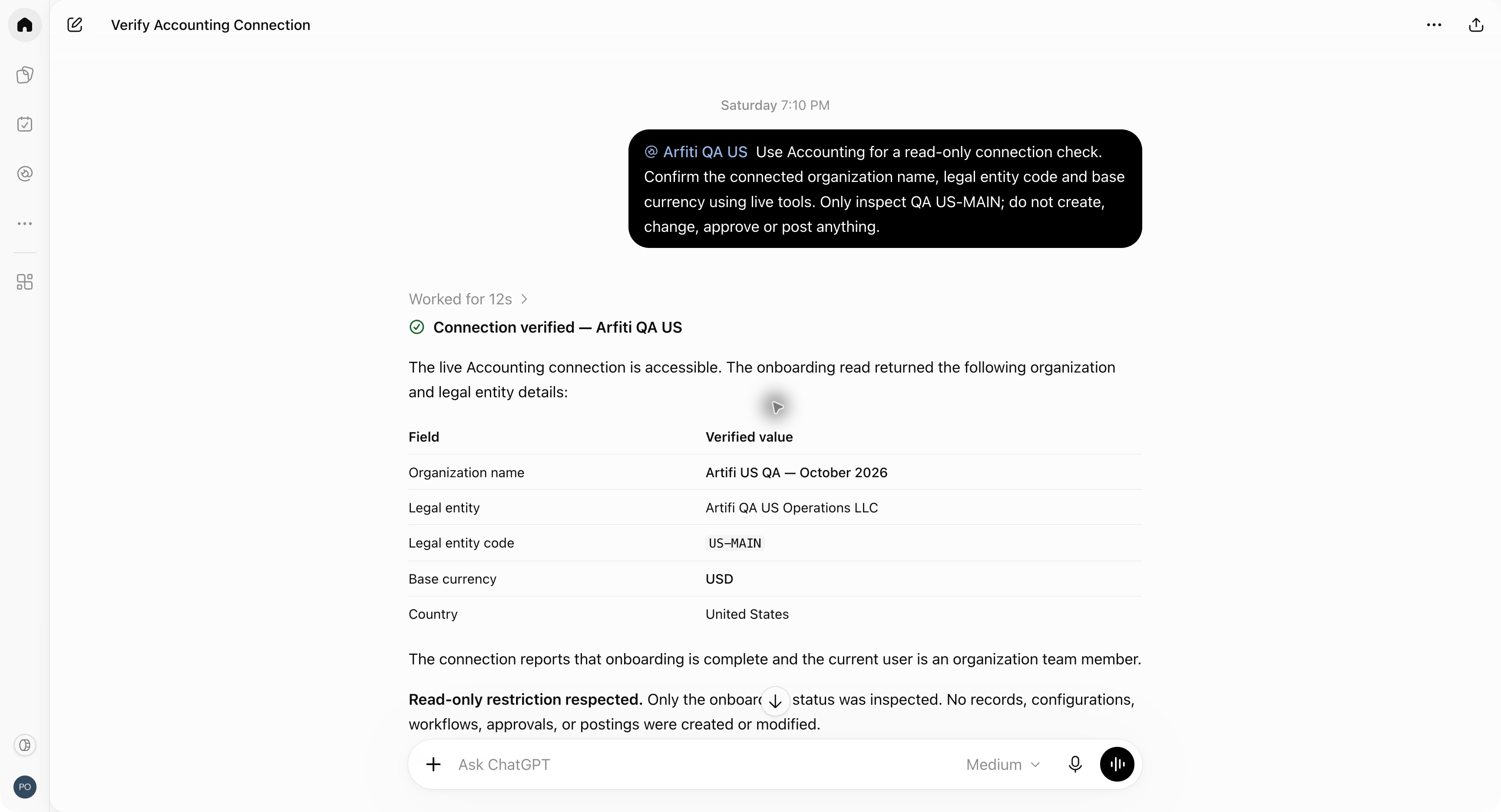
Actual ChatGPT capture from our synthetic QA company. The recorded request was more detailed than the suggested short prompt above. It retrieved company information without posting an entry. Use your own company and entity, not the demonstration identifiers.
3. Choose your first task
Start with your first accounting task: request a report and inspect the entries behind one figure. It changes no records.
Working with records and review
- Book a supplier invoice: source document, review task, confirmation and saved bill.
- Review tasks and confirm changes: distinguish proposals, decisions and execution results.
- Work with files and attachments: verify that an original file is saved against the intended record.
- Troubleshoot access and results: connections, permissions, missing sources and unclear outcomes.
Accounting tutorials
- Reconcile a bank line: match a previously posted fee and check one daily statement.
- Trace a financial report: follow a net expense to its debit and credit entries.
- Review receivables: compare an invoice's remaining balance with dated aging and the control account.
- Prepare an accrual: assemble a proposal for review; the demonstration stops before submission or posting.
- Explain budget variances: analyze an uploaded synthetic file; live budget retrieval is not demonstrated.
Each tutorial identifies the permissions, sources, expected result and limits of its evidence. Use your own company and approved accounting policy rather than copying demonstration IDs or account choices.
Guide evidence reviewed 23 November 2026. Screenshots and numerical examples are from synthetic demonstrations. Client interfaces and available actions may vary.